For musicians who love making things hard.
Ferro is a multitrack tape recorder, free for Windows and Mac, reel or cassette. No undo, no editing, no grid: what you play stays.
No account or sign-up · No payments


The limitation is the feature
A real tape forces you to decide. Ferro keeps that pressure on purpose: every take counts.
01
No editing
No clips, no arrangement, no piano roll. Every track is one continuous tape. All you do is play.
02
No undo
A new take replaces the previous one, or adds to it (sound-on-sound). What you record stays.
03
In real time
Low latency with ASIO to play and record like on a tape machine, without waiting on the computer.
04
One screen
Transport, tracks, mixer and meters in view. Nothing hidden in menus or windows.
How it works
Your first song in five steps.
-
1
Connect your instrument
Open the audio settings and choose your interface.
-
2
Arm a channel
Hit REC on channel 1 and choose the input you plugged into.
-
3
Record
Go back to the start, press REC and play. The tape rolls.
-
4
Listen
Stop, return to the start and hit PLAY.
-
5
Add layers
Arm channel 2 and repeat. You'll hear what came before while you record what comes next.
Want more detail, with screenshots? Open the easy guide (PDF).
Five looks, one tape
Change how it looks with a click.

A closer look

Tape
Warm. Squashes the peaks and rounds the highs.
Tube
Thick and round, with even harmonics.
Transistor
Edge and presence, with odd harmonics.
Three saturations per channel
Every channel and the master can saturate in its own way. Right-click the SAT knob to choose; the knob changes colour. All three play at the same level, so you compare character, not loudness.

Find your plugin by typing
Click an empty slot and type the name, the maker or the type. The list filters instantly; arrows to move and Enter to load. Or group them by brand (By maker) or by kind (By type): Dynamics, EQ, Reverb, Delay…
Your phone as a remote control
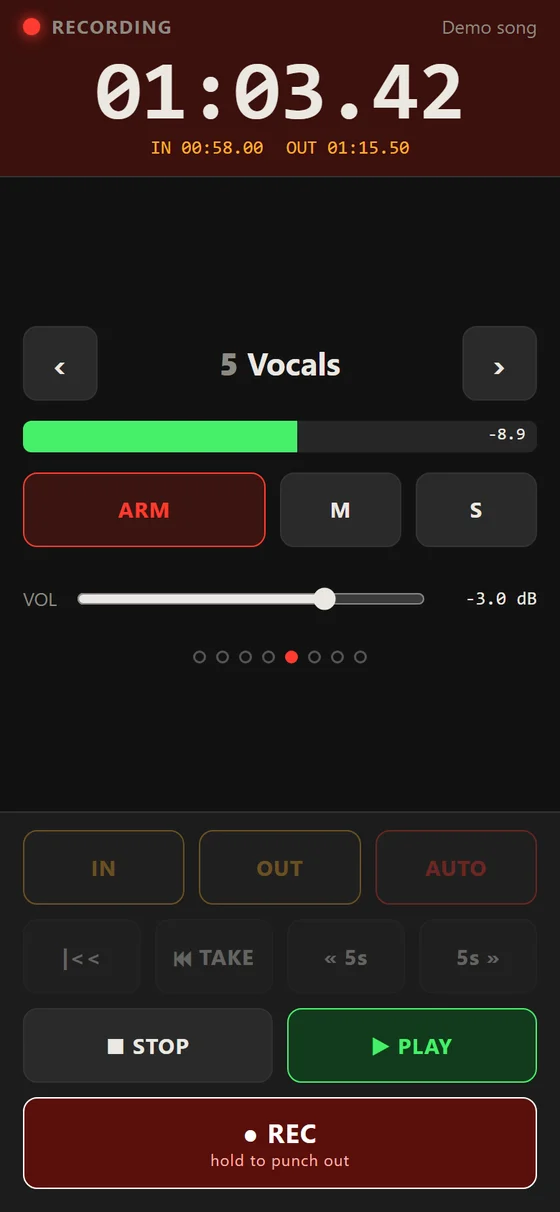
Record from across the room. Click the phone icon in Ferro, scan the code and you're set: play, stop, REC, return to zero, five-second jumps, IN, OUT and every track with its meter, arm, mute, solo and volume. It works over Wi-Fi and there's nothing to install on the phone.
REC is held for half a second, so a brush of the hand can't erase a take. TAKE takes you back to where you started the last one.
Move the tape like a real one
REW and FF wind faster with every press. With CUE you hear the tape while it runs: backwards when rewinding and, fast, the good old chirp. Drag over the tape and you move it as if you were turning the reels by hand; with Shift it goes slow and the music is clear, so you land on the exact spot.

Reel or cassette
When you create a tape you choose the machine, and it stays with the song. The reel, up to 16 tracks at 15 or 7½ ips, is open and clean. The cassette multitrack, up to 8, is Portastudio-style: the cassette carries your song's name on its label and sounds like Type I, II or IV tape, with its hiss, its wear and dbx if you want it. Every time you open Ferro, you choose between a new tape or one of your latest.

Print and mix with two recorders
When you run out of tracks, print: mix several, effects and all, into a stereo or mono stem, clean or through the tape, and carry on. It's what was done on tape, but your original tracks are never lost. You record on recorder A; the stems live on B.


The whole process, step by step and with a drum example, is in the easy guide (PDF).
What's inside
4, 8, 12 or 16 tracks
Up to 16 on the reel and up to 8 on the cassette. Extend it whenever you want.
Two machines
A studio reel or a cassette multitrack. Each song keeps its own, and there are five looks.
Overdub and sound-on-sound
Record a track while hearing the others, or layer on the same one.
Print stems to a second recorder
Mix several tracks, effects and all, in stereo or mono, clean or on tape, and gain tracks. Your originals are kept.
Import a beat or any audio
Drag one or more files onto a channel and they're on the tape, as if you had recorded them.
One stereo file, one channel
A stereo file stays joined: one fader, one EQ and a single plugin for both sides. A right-click splits it into two tracks.
Plugins from another tape
When you import a track from another Ferro tape, it offers to bring along the plugins it had, with their settings.
REW, FF and CUE
Rewind and fast-forward at three speeds, and hear the tape while it runs, chirp included.
Memories, like in the studio
One key stores the chorus, the verse or the solo, with no limit; type its number to get there. Named, in view on the tape.
Track sheet
The memories and your session notes, like the sheet that came in the tape box. Saved by themselves.
The guide, one click away
The easy guide opens from Ferro itself, in Spanish or English.
Turn the reels by hand
Drag over the tape to hear it go by. With Shift, slowly, down to the exact spot.
A padlock on every channel
SAFE: the take you love can't be recorded over or erased by mistake.
Hear yourself live
With MON on IN, the channel lets you hear your instrument while the tape plays, without recording.
Punch-in and punch-out
Manual or automatic, sample-accurate.
EQ on every channel
Filters, shelves and two mid bands. Drag right on the curve.
Plugins VST3
Eight inserts per track, shown four at a time, like outboard gear. Find them by typing their name, or by brand or kind. Audio Units on Mac.
Remote control
Your phone runs the recorder over Wi-Fi, with nothing to install. Record away from the computer.
Three saturations
Tape, tube or transistor on every channel and on the master. Each one sounds different.
Tape character
Wow and flutter, each with its depth and rate, and varispeed. On the cassette, the tape type, wear, hiss and dbx.
Bus master
EQ, inserts, fader and two-track saturation.
Export to WAV
One button bounces everything to a file you can share.
Tuner
Tune your instrument without leaving the tape: it reads on the counter.
FX button
Bypass all plugins at once to compare.
Wheel on every control
Hover over a fader or a knob and turn the wheel, no click needed.
Meters your way
VU needles, bars or both. Post-fader, to see what each track sends to the mix, or pre-fader, what comes off the tape.
Uses every core
Tracks are spread across your computer's cores, like in a DAW: it handles heavy plugins. A muted track uses nothing.
What you need
- A computer
Windows or Mac (macOS 11 or later, Apple Silicon and Intel). - Headphones or speakers
To hear what you record. - Your instrument or a microphone
Guitar, keys, your voice… whatever you like. - An audio interface
The little box that connects your instrument to the computer. If you don't have one, you can still try Ferro.
Download Ferro.
Free. No account. No tricks.
Easy guide (PDF)
We couldn't load the download. Reload the page in a few minutes.
FAQ
What is Ferro? +
A free multitrack tape recorder for Windows and Mac. It records in real time, with overdub, punch-in and punch-out, EQ on every channel, VST3 plugins and tape, tube or transistor saturation. It's for playing and recording at home, not for editing.
How is it different from a DAW? +
In what it lacks, on purpose. There are no clips, no grid, no piano roll and no undo: you record the take and move on, like on a real tape recorder.
Is it really free? +
Yes. There is no paid version, no account and no ads. You download it and use it.
Why do Windows or macOS warn me when I open it? +
Because Ferro is new and has no paid digital signature from Microsoft or Apple. The warning appears only once.
Windows: if you see “Windows protected your PC”, click “More info” and then “Run anyway”.
Mac: drag Ferro to Applications and open it. When it says it can't verify the developer, go to System Settings → Privacy & Security and click “Open Anyway”. Then allow microphone access. The PDF guide walks through it with screenshots and includes a plan B if it won't open.
Does it work without an audio interface? +
Yes, to try it out. If your interface has an ASIO driver, Ferro uses it for the lowest latency. If not, it uses the system audio.
Where are my recordings saved? +
In your Music folder, inside the Ferro folder, or in the one you choose (another disk, for example) with “Tapes folder...” on the start panel. Each tape is a folder and saves itself: there's no “Save” to press. If you uninstall Ferro, your tapes are not deleted.
Can I use my plugins? +
Yes: VST3 on Windows and Mac, and Audio Units on Mac, up to eight per channel. If your plugins are in another folder, you add it when scanning (Options… › Scan, and the + in “Select folders to scan”). Each plugin is scanned in a separate process, so one that fails won't bring the program down. The first scan can take a few minutes (Waves, up to four).
Can I record away from the computer? +
Yes. Ferro has a remote control for your phone: click the phone icon, scan the code with the camera and you run the recorder over Wi-Fi. Phone and computer have to be on the same network. There's no app to install.
Can I hear my instrument while the tape plays, without recording? +
Yes. Every channel has MON next to REC. In TAPE it works like a tape machine: armed, you hear the input when stopped or recording, and the tape when playing. In IN you always hear what comes into that channel, even unarmed and with the tape running, so you can play live over the recording. Listening doesn't record.
Can I bring in a beat or audio I already have? +
Yes. Drag the file (WAV, MP3, FLAC…) onto a channel, or use the import icon (the arrow going into a reel). Since Ferro doesn't edit, the audio is written to the tape from wherever the tape is, as if you had recorded it: a stereo one becomes a single stereo channel. It respects REPLACE and S-O-S, and if the channel already has audio it asks before replacing it.
Can I hear the tape while rewinding, like on a real machine? +
Yes. With CUE on (it comes that way; C key), the tape sounds while it winds: backwards when rewinding and, fast, with the good old chirp. You can also drag over the tape to move it as if you were turning the reels by hand, and hold Shift to go slowly down to the exact spot. If you'd rather have silence, turn CUE off.
What is printing (PRINT) and the two recorders? +
It's what was done on tape when you ran out of tracks: you mix several tracks, effects and all, into a stereo or mono stem and carry on. Ferro has two recorders: you record on A and the stems live on B. Your original tracks are never lost: they're muted and you can undo the print. The PDF guide explains it step by step.
How do I update when a new version comes out? +
You don't need to uninstall anything. On Windows, open the new installer; on Mac, drag the new Ferro to Applications and choose “Replace”. Your tapes and settings are kept.